What it’s for
It tells you at a glance if something is wrong and how to fix it: the server responds, your sources are connected, the phone has the permissions, the app is the latest version.
How it works
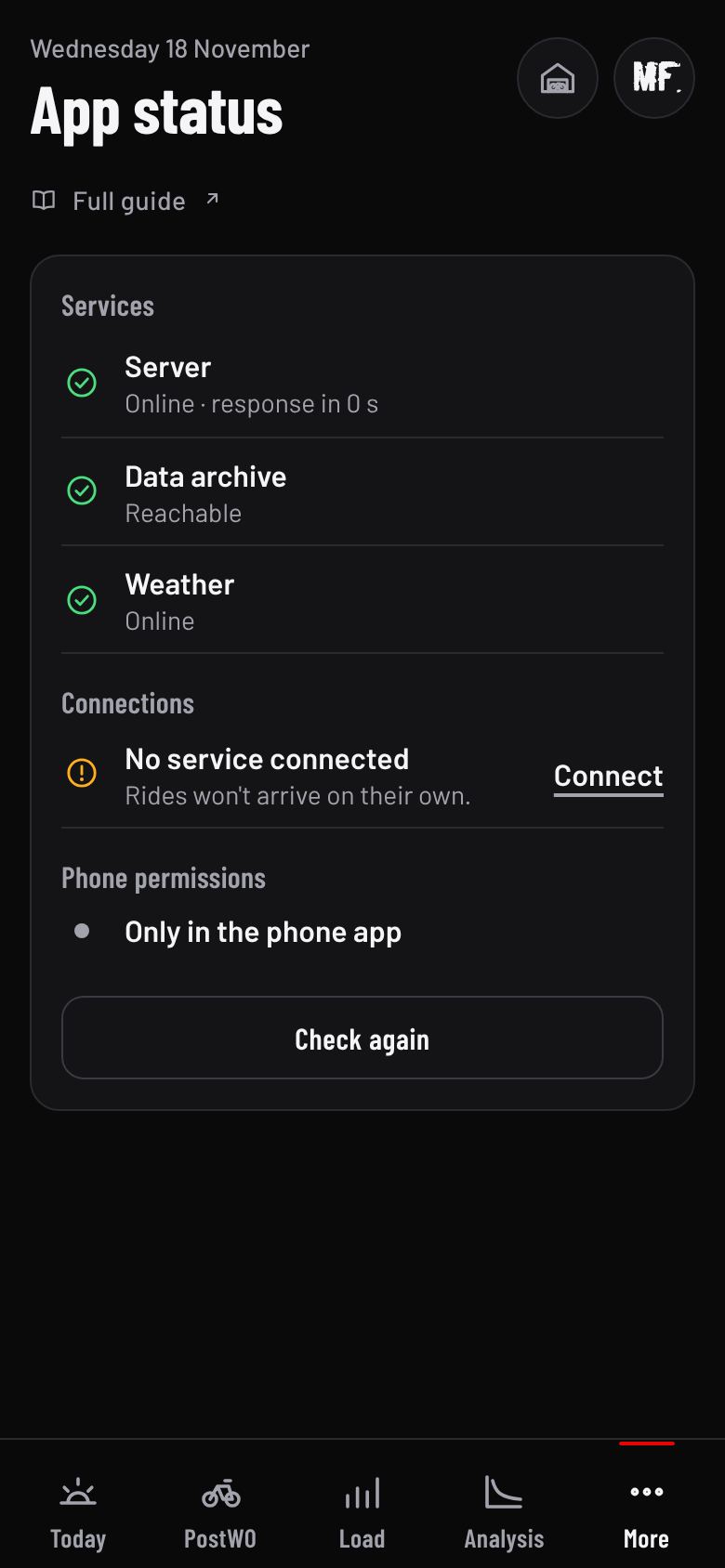
- Services: “Server” (online, with the response time in seconds), “Data archive” (if it’s unreachable, data stays on the phone and is sent later) and “Weather” (if it doesn’t respond, enter the temperature by hand).
- Connections: the connected sources; if there are none, rides won’t arrive on their own and you get “Connect”.
- Phone permissions: Location (not needed if the weather comes from a chosen city), Notifications (without them, long measurements and imports keep the screen on), Health Connect and the paired HR strap.
- App: the version you have. If a newer one is out, the row says “You have …, … is out” with “Download”.
- It also opens by itself at sign-in, when access fails because of the network.
What you see in the app
In More → “App status” one row per item with a green, yellow or red sign, the detail and, where needed, the button to fix it (“Turn on”, “Connect”, “Download”). At the bottom, “Check again” runs all the checks again.
How to do it
- Open “App status” when something doesn’t arrive or doesn’t respond.
- Tap the button next to the yellow or red row and follow the step it asks for.
- Tap “Check again”. If the server still doesn’t respond, use “Report a problem”.